
Use OpenWebUI with Continue in VS Code
Here is the best way I have found for using a self-hosted instance of Open Web UI and Continue.
Set up Continue on VS Code
In VS code, open up the extensions window and install Continue.

Once it's installed, there should be a config file that it opens up named config.yaml. If it doesn't open up during your first use, click the gear in the top right, select 'configs' and click on Local Config.
We will use this config file to put all of the stuff we need to get continue to talk with OpenWebUI's API.
Keep the Config file open, and then move over to a browse to get configured on the OpenWebUI side.
Configure OpenWebUI
- For this tutorial I am making a few assumptions
- OpenWebUI is up to date, and running the latest version.
- You are an admin for the instance
- The instance is using local models via Ollama
- you already have models downloaded.
- I configured OpenWebUI to act as a API service for the Ollama instance running on my server. There are other ways to do this, but in my circumstance, it makes sense.
Open up the OpenWebUI interface and sign in.
Step 1: Enable API
- click on your profile in the bottom left , open Settings and open the admin panel.
- Click on the 'Settings' tab and go to 'Connections'
- Enable 'Ollama API'
- Save the changes
Step 2: Generate API Key
- Click on your profile in the bottom left and click on 'Settings'
- Click on 'Account'
- Show API keys and click on the button to generate an API key. Copy this key, as we will use it later.
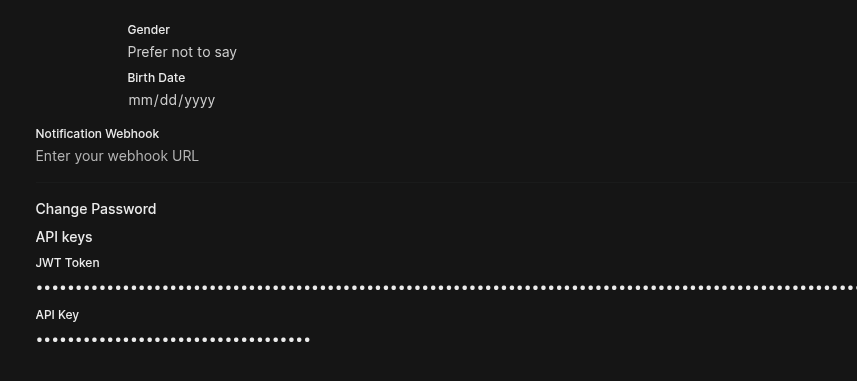
- With the API key generated, and the API enabled, we are ready to start integrating!
Add OpenWebUI as a model provider
Back in VS code, we need to tell the config.yaml file where to look for the OpenWebUI provided models. The config primarily lists the models that can be used with Continue, and what their purpose is. Each model has a nickname, provider, model name, roles, API URL and API key.
Add a model for autocomplete
- To add a model for autocomplete, copy the following snippet into the models object in the
config.yaml
- name: Qwen2.5-Coder # you can rename this to be what you want to see in the Continue UI
	provider: ollama # since we are querying the ollama instance, we need to use the ollama provider.
	model: qwen2.5-coder:1.5b
	apiBase: https://[YOUR URL HERE]/ollama
	apiKey: [YOUR API KEY HERE]
	roles:
		- autocomplete
- After adding, save the file.
Add a model for chat
- Follow the same steps as above, but add
chatand/oreditto the roles.
Full config
name: Moosen Assistant
version: 1.0.0
schema: v1
models:
- name: Qwen2.5-Coder 1.5B
	provider: ollama
	model: qwen2.5-coder:1.5b
	apiBase: https://example.dev/ollama
	apiKey:
	roles:
		- autocomplete

- name: Nomic Embed
	provider: ollama
	model: nomic-embed-text:latest
	roles:
		- embed
- name: Dolphin
	provider: ollama
	model: dolphin3:latest
	apiBase: https://openwebui.example.dev/ollama
	apiKey:
roles:
- chat
- edit
- name: Autodetect #used for local ollama instance
	provider: ollama
	model: AUTODETECT
context:
- provider: code
- provider: docs
- provider: diff
- provider: terminal
- provider: problems
- provider: folder
- provider: codebase