
Wanting to self-host a Matrix Server? Start Here.

With the Eye of Sauron growing ever vigilant, and now turning to platforms like Discord, more and more people have been looking for alternatives. One such option is a server that uses Matrix. Matrix is a protocol for distributed communication that can be self-hosted and allows users to own their own data. Since it's a protocol, there are several options for how to run it. I went with Synapse because it is one of the most mature backends, but there are plenty of other services and tools that you can experiment with.
Despite being one of the largest projects for one of the hottest new trends in self hosting, there is a disturbing lack of tutorials on the subject, and getting my instance up and running took more trial and error that I would have liked. In order to be a good internet citizen, I wrote down the process I followed and tried to compile something that would be useful to others trying to set up an instance.
The following is how we set up our server. Our current setup already has nginx running in another container that is already set up to handle other reverse proxies. I will not be including it in the docker build because of this. If you want nginx, postgres, and matrix all-in-one, see this guide: Matrix homeserver (v1.0.0) with Docker & Traefik – Jon Neverland
Side note, this tutorial is pretty old. much of the configs listed are deprecated.

Setting up a Synapse Server via Docker compose
Docker Containers
Setup
- create a new directory where you want the program files and Docker compose file to live.
mkdir matrix
sudo chown -R $USER:$GROUP matrix
- Create a
docker-compose.yamlfile with an editor of your choice
services:
  postgres:
    image: docker.io/postgres:latest
    restart: unless-stopped
    build:
      network: host
    ports:
      - "5432:5432"
    volumes:
     - /home/USER/matrix/pgdata:/var/lib/postgresql/data
    environment:
     - POSTGRES_PASSWORD=CHANGEME
     - POSTGRES_USER=synapse
     - POSTGRES_INITDB_ARGS=--encoding=utf-8 --lc-collate=C --lc-ctype=C

  synapse:
    image: matrixdotorg/synapse:latest
    restart: unless-stopped
    depends_on:
      - postgres
    build:
      network: host
    ports:
     - "8008:8008"
    volumes:
     - /home/USER/matrix/synapse:/data
Let's briefly cover what's going on here, especially if you are new to docker. We are asking docker to create 2 services: postgres and synapse. Postgres is going to be set up to use the same network as the host device it's on, using port 5432. All of the data for the postgres service and database will be saved in a folder called pgdata.
Important 👀:
change the password for the postgres account to something else.
For synapse, we are doing the same thing, running a new service on the host's network.
all of the data for synapse will be saved in a data folder in matrix/synapse
- Save the file and close.
Generate homeserver file
In order to run the server, we need a homeserver.yaml config file. How do we get this? Great question!
- Run
docker run -it --rm \
    --mount type=volume,src=synapse-data,dst=/data \
    -e SYNAPSE_SERVER_NAME=example.com\
    -e SYNAPSE_REPORT_STATS=no \
    matrixdotorg/synapse:latest generate
This docker command figures out how to speck out the homeserver file.... kind of. By default, it uses sqlite, and may get a couple of things wrong. So after you run this command:
- Update homserver.yaml'
- The file generated should be in the data folder in the matrix directory. Open it up with a text editor.
- Make sure that you update the database section to reference postgres (via psycopg )
	name: psycopg2
      args:
	    user: synapse
	    password: CHANGEME #You should have set this in Setup
	    dbname: synapse
- Verify that your server name is correct. Your server name should be the public domain that you plan on using. For instance, if you plan on running it on example.com, your Server Name should be
example.com. If you are running Synapse on a subdomain likematrix.example.com, then set Server Name tomatrix.example.com. - At the end, it should look something like this:
# Configuration file for Synapse.

# For more information on how to configure Synapse, including a complete accounting of
# each option, go to docs/usage/configuration/config_documentation.md or
# https://element-hq.github.io/synapse/latest/usage/configuration/config_documentation.html
server_name: "YOUR_SERVER_URL"
pid_file: /data/homeserver.pid
listeners:
  - port: 8008
    tls: false
    type: http
    x_forwarded: true
    resources:
      - names: [client, federation]
        compress: false
database:
# Change this to match below.
  name: psycopg2
  args:
    user: synapse
    password: CHANGEME
    dbname: synapse
log_config: "/data/YOUR_SERVER_URL.log.config"
media_store_path: /data/media_store
registration_shared_secret: "This will be auto generated"
report_stats: false
macaroon_secret_key: "This will be auto generated"
form_secret: "This will be auto generated"
signing_key_path: "/data/YOUR_SERVER_URL.signing.key"
trusted_key_servers:
  - server_name: "matrix.org"
Run docker compose
Now, we will build the container and run it locally.
- in the matrix folder, run
docker compose up -d- You should see
 ✔ Container matrix-postgres-1 Created  0.0s
✔ Container matrix-synapse-1 Created 0.0s - Once they are running, you can confirm everything is playing nicely by checking the logs
docker logs matrix-synapse-1
- If you see a screen saying that it's running, you can test the connection by going to the server's local IP address port 8008. In this case, ours was running on 192.168.0.34:8008.
- If you're lucky, you should see this
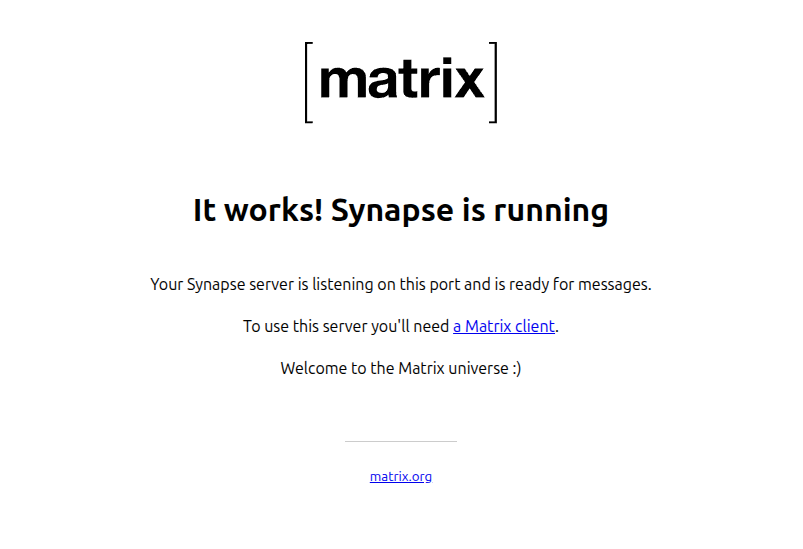
At this point, congrats! You have a matrix server running with no one on it.
Create some users
Synapse allows you to provision users, or allow anyone to join. We decided to provision accounts manually. Creating new users is straightforward, just run this command:docker exec -it matrix-synapse-1 register_new_matrix_user http://localhost:8008 -c /data/homeserver.yaml -a -u NEW_USER_NAME -p SOME_PASSWORD
-u is the username and -p is the password. Once you run this, a user will be created. At this point, you should be able to use any matrix client to log onto your very own server!
Using the server
Logging in with a client
Be sure that you have completed the networking steps before this point. Logging in will only work if the server url has been configured correctly.
Now that we have a backend set up, we need a front end to send and receive messages. There are dozens of Matrix Clients out there, so have fun browsing. When you have a client that suites your needs, you can log in either with a connection string @YOUR_USERNAME:YOUR_SERVER_URL
OR by first entering the server url, then your username and password.
Wrapping up/ What to do next
This is just the bare minimum required to get set up. the Matrix protocol is insanely deep and backend projects like Synapse are equally complex. There are many other topics that I hope to cover in future posts, including the really cool Matrix Device Verification process and a guide to building a discord bridge.